The /tp Command in Minecraft: How to Teleport to a Player, by Coordinates, and to Other Worlds
 921
921 0
0 0
0
The /tp command allows you to instantly move players and mobs across the world. It works in all versions of the game, provided that cheats are enabled in the world settings or you have administrator rights on the server.
Article Navigation
Teleporting to a Player or Entity
To move one player to another, simply use their nicknames. The command is structured on the principle: "Who to move" and "Where to move".
- /tp Alex Steve - Alex will be moved to the same spot where Steve is standing.
- /tp Steve @s - Steve will be moved to your location.
The command often uses selectors - short codes that replace nicknames:
- @s - yourself.
- @p - the player nearest to you.
- @a - all players in the world.
- @e - all entities (mobs, animals).
Examples with mobs:
- /tp @e[type=zombie] Steve - all zombies in the loaded area will appear at Steve's location.
- /tp @e[type=cow,limit=1] @s - bring one nearest cow to yourself.
Using Coordinates
The Minecraft world is divided into three axes: X (horizontal), Y (height), and Z (horizontal). You can check your current coordinates by pressing F3 (on PC) or by enabling the option in settings (on consoles and mobile phones)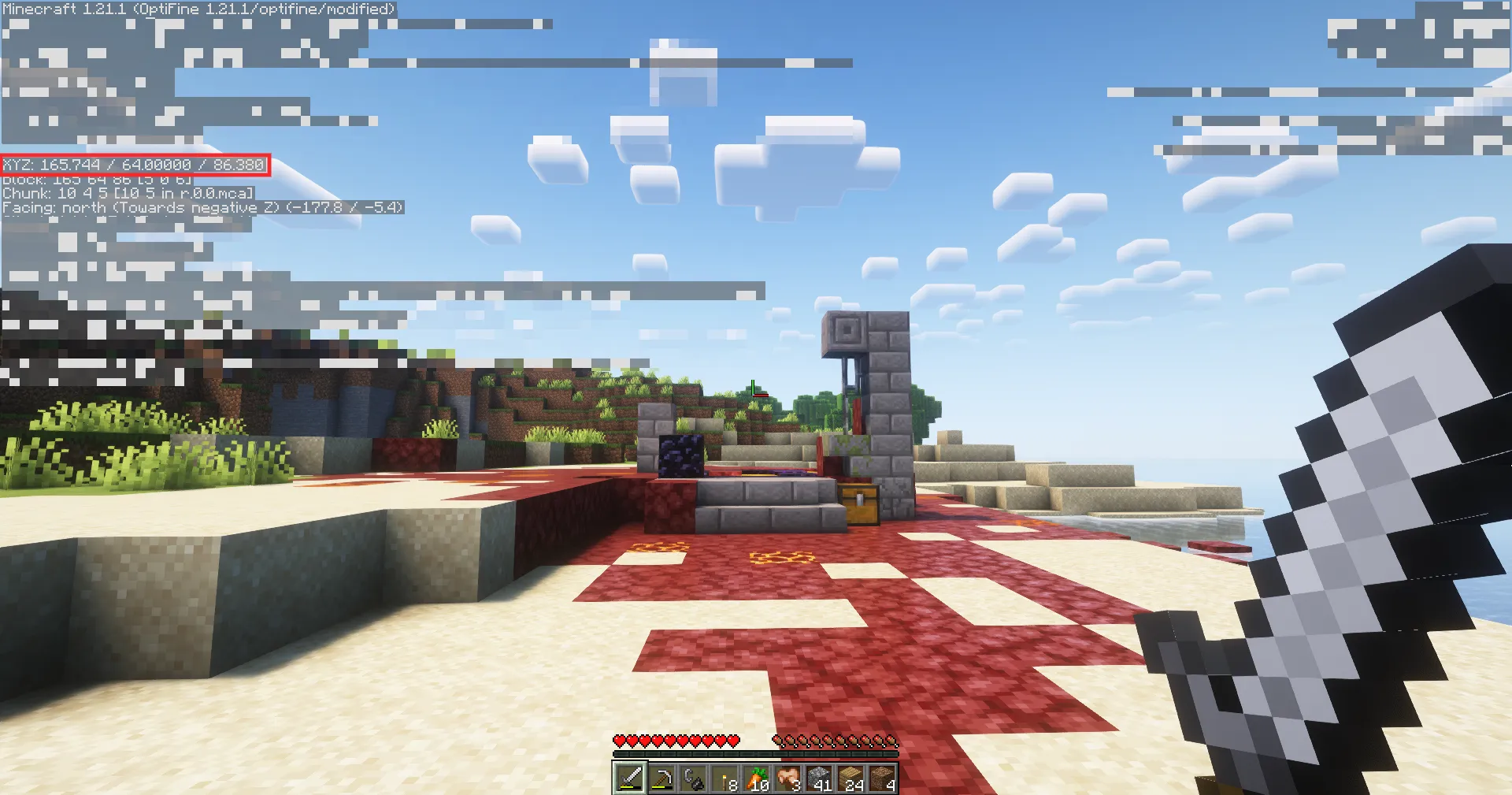
Exact Coordinates
If specific coordinates of a place are known, they should be entered after the command.
- Example: /tp 150 70 -300 - move to the point at these specific coordinates.
Relative Coordinates (the ~ sign)
The tilde allows you to move a certain number of blocks relative to where you are currently located.
- /tp ~ ~10 ~ - lift the player 10 blocks up.
- /tp ~-5 ~ ~ - move 5 blocks to the side.
- /tp @e[type=zombie] ~ ~-100 ~ - drop all zombies within the render distance deep underground.
Controlling View Direction
When teleporting, you can pre-specify where the player or mob will look after appearing. To do this, two more numbers are added after the coordinates: horizontal rotation and vertical tilt.
Syntax: /tp [Who] [X] [Y] [Z] [Rotation] [Pitch]
Example: /tp @s ~ ~ ~ 90 0 - you will stay in place but instantly turn to face west.
The view direction can also be seen by pressing F3 (on PC).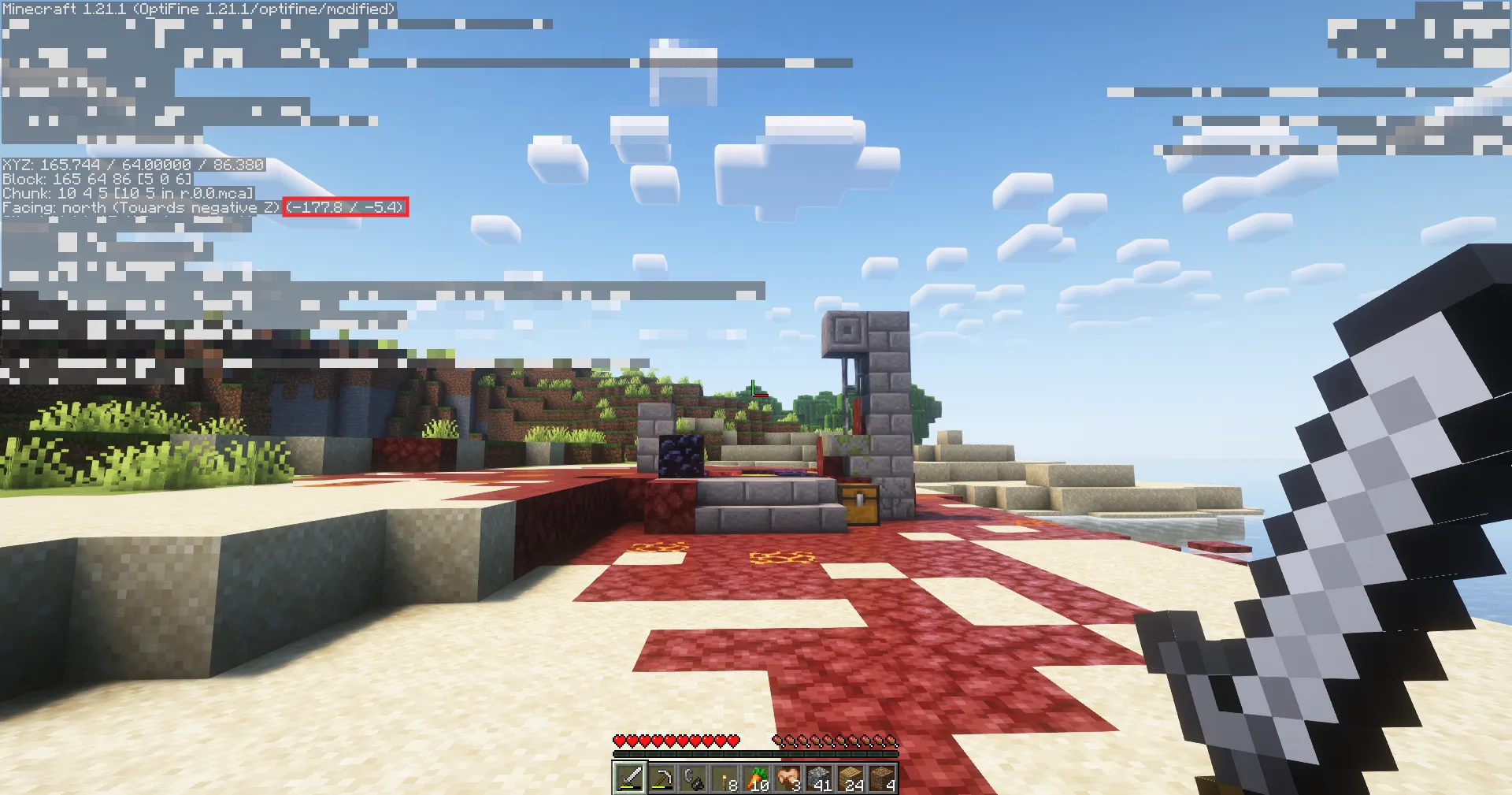
Teleporting to Another Dimension (Nether, End)
In the game, there is no direct function to move to another world using only the /tp command. To end up in another dimension, a combination with the /execute command is used.
Commands for Java Edition:
- To the Nether: /execute in minecraft:the_nether run tp @s ~ ~ ~
- To the End: /execute in minecraft:the_end run tp @s ~ ~ ~
- To the Overworld: /execute in minecraft:overworld run tp @s ~ ~ ~
If you specify exact numbers instead of ~ ~ ~, the teleportation will occur to specific coordinates in the other world.

Published by: TNT