Easy way to play Minecraft with a friend online without Hamachi — E4MC lets you share your world without server setup, ports, or extra…
21Kviews2 min
Easy way to play Minecraft with a friend online without Hamachi — E4MC lets you share your world without server setup, ports, or extra software.
What does E4MC do? It creates a temporary online server from your singleplayer world. You just open your world to LAN, and the mod provides a special link that your friend can use to join.
How to use E4MC — Step-by-Step
Install the E4MC mod.
Enter your singleplayer Minecraft world.
Click “Open to LAN.”
The mod will display a join link.
Copy the link and send it to your friend.
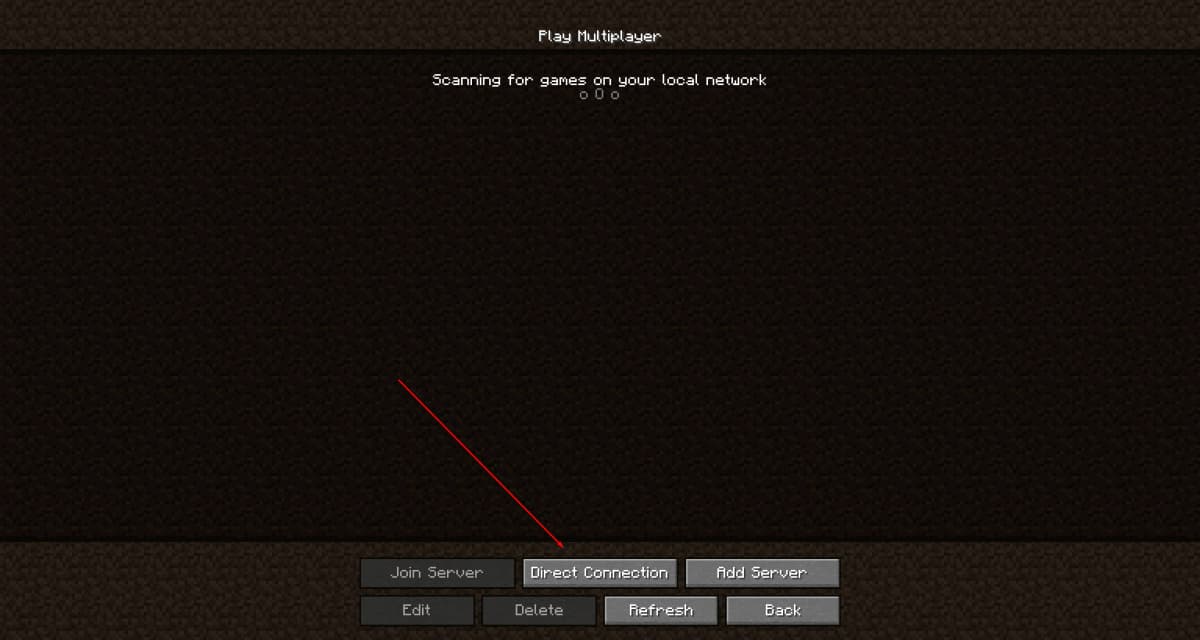
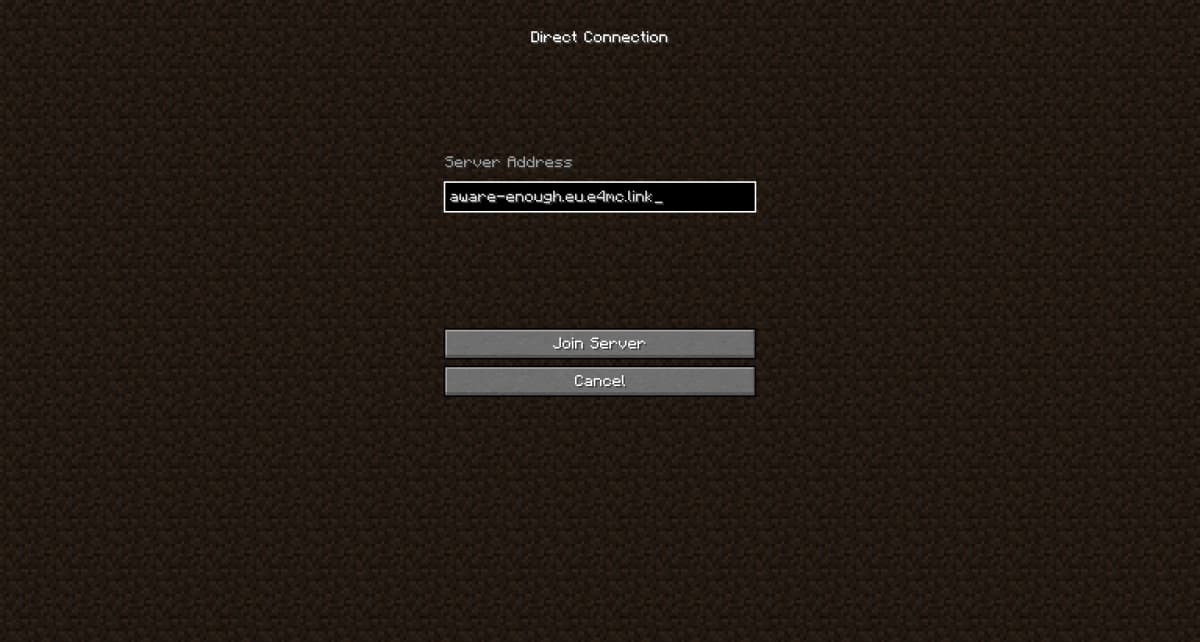
Your friend opens multiplayer, pastes the address — and you're playing together!
Why it's convenient
No need to open ports on your router.
Works even on a regular home internet connection.
Your friend can join without the mod, if using a compatible version of the game.
Fast, easy, and no advanced setup needed.
No need for third-party software like Hamachi, ZeroTier, or VPNs — everything runs through the mod itself.
Things to remember
The link only works while the world is open.
You'll need to generate a new link after leaving the world.
Conclusion If you're looking for a way to play Minecraft with a friend without setting up a server or messing with network settings — E4MC is the perfect solution. It’s a quick and simple way to invite a friend into your world with just a couple of clicks. A great option for players who want to start playing together instantly, without the hassle or extra programs.
Easy way to play Minecraft with a friend online without Hamachi — E4MC lets you share your world without server setup, ports, or extra software.
What does E4MC do? It creates a temporary online server from your singleplayer world. You just open your world to LAN, and the mod provides a special link that your friend can use to join.
How to use E4MC — Step-by-Step
Install the E4MC mod.
Enter your singleplayer Minecraft world.
Click “Open to LAN.”
The mod will display a join link.
Copy the link and send it to your friend.
Your friend opens multiplayer, pastes the address — and you're playing together!
Why it's convenient
No need to open ports on your router.
Works even on a regular home internet connection.
Your friend can join without the mod, if using a compatible version of the game.
Fast, easy, and no advanced setup needed.
No need for third-party software like Hamachi, ZeroTier, or VPNs — everything runs through the mod itself.
Things to remember
The link only works while the world is open.
You'll need to generate a new link after leaving the world.
Conclusion If you're looking for a way to play Minecraft with a friend without setting up a server or messing with network settings — E4MC is the perfect solution. It’s a quick and simple way to invite a friend into your world with just a couple of clicks. A great option for players who want to start playing together instantly, without the hassle or extra programs.


 Installing Mods in Minecraft: A Guide for Forge, FabricLearn how to install mods in Minecraft with this step-by-step guide for Forge and Fabric. Improve your game with new features, tools, and mechanics!Open the install guide