Forge Config Screens — mod for adding a graphical interface for configuring modifications in Minecraft
Forge Config Screens is a client-side mod that adds a graphical interface for editing configs of other mods directly in Minecraft.
Forge Config Screens is a client-side mod that adds a graphical interface for editing configs of other mods directly in Minecraft.
Forge Config Screens — mod for adding a graphical interface for configuring modifications in Minecraft
Minecraft version on which the article was tested and written: 1.20.1
Range of supported versions: 1.16.5 – 1.20.1
Dependencies: Forge Config API Port, Mod Menu, Fabric API (for Fabric builds)
Forge Config Screens (also known as Config Menus for Forge) is a client-side mod that adds a graphical interface for editing configs of other mods directly in Minecraft without having to close the game and manually edit .toml files. Changing a parameter, restoring the default value, viewing the description of each field — everything is done through screens in the style of the vanilla settings menu.
Editing Interface
After opening the menu of a specific mod, a list of all its configuration files appears — client, common, server. A file that has deviations from the default is highlighted in italics — a quick marker that someone has already edited a value here. Next to each file is a button to reset all parameters to their default state.
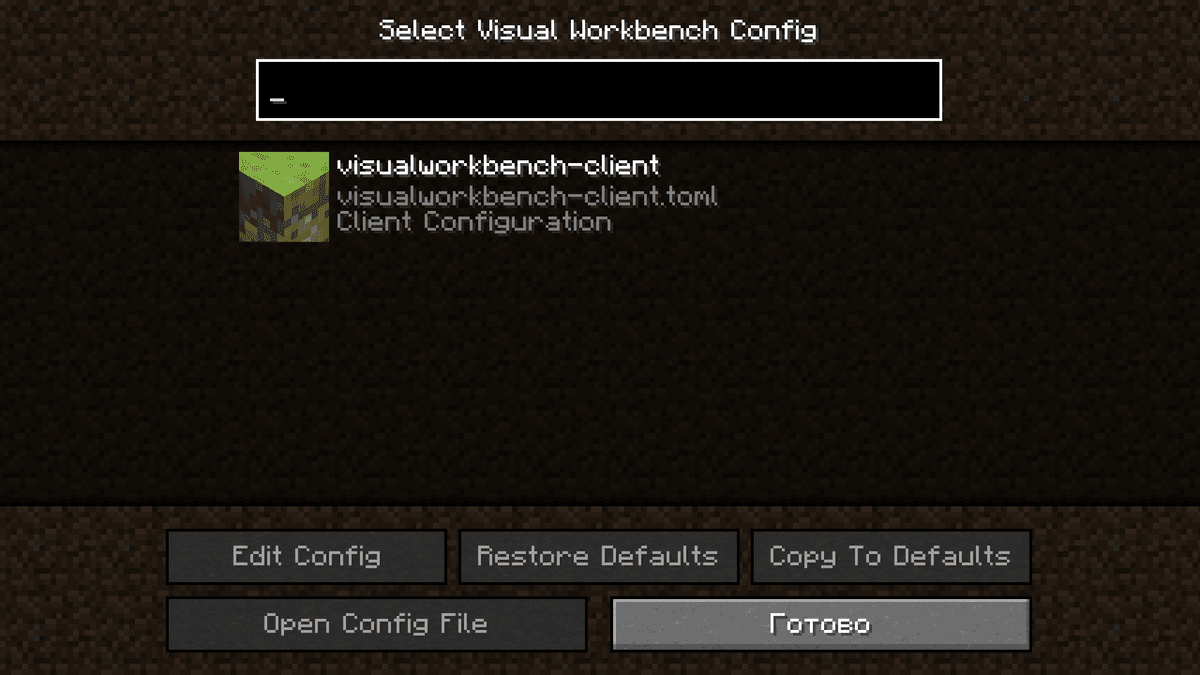
Screen with a list of config files of a specific mod in Forge Config Screens
Inside a specific file, there is a vertical list of parameters and categories. To the right of each parameter is a button to return to the default value. When hovering, a tooltip appears with the technical key, description, allowed range, and default value.
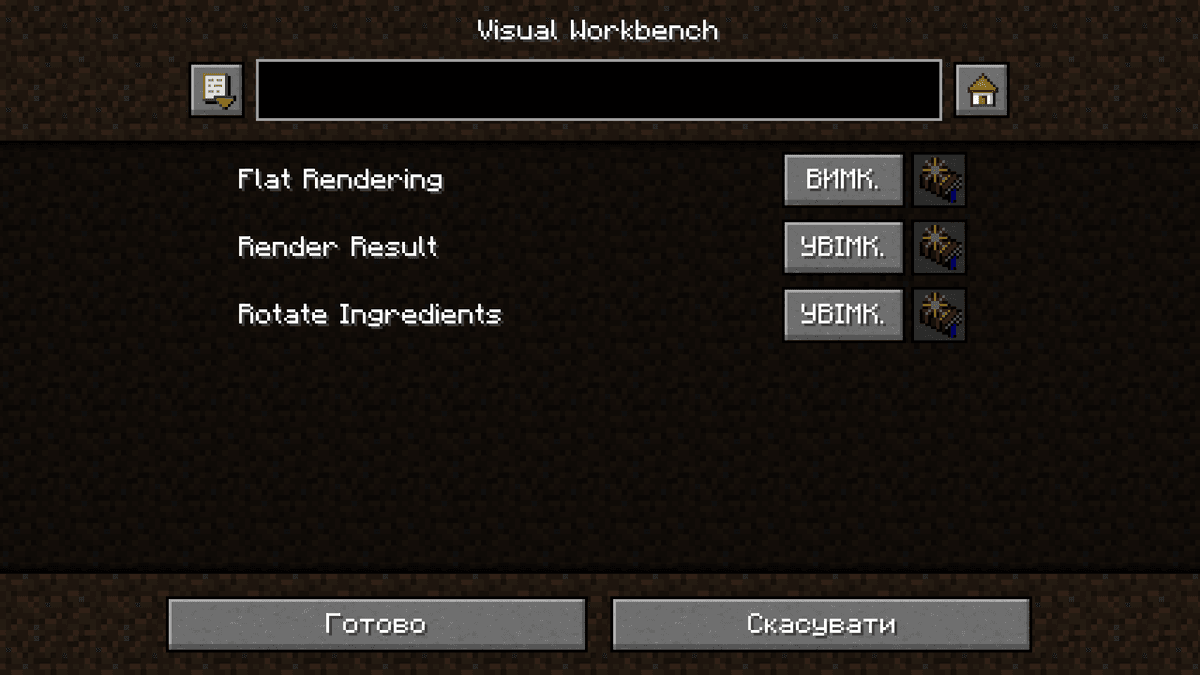
Screen with a list of settings of a specific config file
Complex values and lists
Text fields, enum values, and lists are edited in a separate subscreen. For an enum parameter, a list of all permissible options appears — you can immediately see what can be selected, without checking the mod's documentation.
Lists have a separate editor. Each entry is entered as a string, after which automatic type checking and conversion are performed. If the type of elements cannot be determined automatically, the interface asks you to choose it manually. You cannot save a list with incorrect entries — you must fix them first, otherwise the Done button will not work.
Server configs and synchronization
Server configs exist for each world separately, so they can only be edited from the main menu after selecting a world. If you are already in a world, it is selected automatically.
On a multiplayer server, only an operator can edit the server config. After saving, the changes fly to the server, and from there they are synchronized with all other clients. In a single-player game, there are no warnings or transfers — everything happens locally.
To edit server configs on an online server, Forge Config Screens must be installed on both the client and the server. Without the server part, the interface will not be able to read or apply edits.
Standard configs for new worlds
A separate feature is Copy to defaults. It marks the current config as standard, which will be substituted every time a new world is created. Most useful for server configs: once a file is configured to your play style, it is moved to the defaultconfigs folder and applied automatically instead of the defaults built into the mod.
Parameter | What it does |
| Path to the folder with template files that are substituted when creating a new world or when restoring a config. |
| If one value becomes invalid and needs replacement — the value from the standard file is taken, rather than the default built into the code. When |
| When there is a file parsing error, a fresh copy is created and a retry is made. When |
| Server configs are saved in the common |
Conclusion
Forge Config Screens removes the need to leave the game for every parameter edit. Instead of searching for a file among dozens of others, opening it in Notepad, risking breaking the syntax and restarting the game — there is a mod menu, built-in search, and a return to the game. Synchronization of server configs on an online server is a separate convenience for modpack admins.
Suitable for modpacks with a large number of mods, where parameters often have to be tweaked: private servers with a modpack of dozens of entries, test builds for your gameplay, RPG packages with fine-tuning of each mod separately.
Installation
A typical installation takes about 5 minutes. The flow is the same; only the loader and the matching build differ.
- 1Install a mod loader (Forge, Fabric or NeoForge) that matches your Minecraft version.
- 2Download the mod file (.jar) built for that same version.
- 3Place the .jar into your .minecraft/mods folder.
- 4Launch Minecraft with the modded profile and check the mod loads in-game.
 Installing Mods in Minecraft: A Guide for Forge, FabricLearn how to install mods in Minecraft with this step-by-step guide for Forge and Fabric. Improve your game with new features, tools, and mechanics!Open the install guide