
Vanilla Mashup (PBR): A Review of the Realistic Vanilla Resource Pack
A review of the Vanilla Mashup (PBR) resource pack, which adds realistic lighting, volume, and reflections to classic Minecraft textures.
A review of the Vanilla Mashup (PBR) resource pack, which adds realistic lighting, volume, and reflections to classic Minecraft textures.
Dependencies:
Minecraft Version: 1.20.x – 26.1.x
Required dependencies: Shaders with LabPBR support (e.g., Complementary), OptiFine, or Iris Shaders
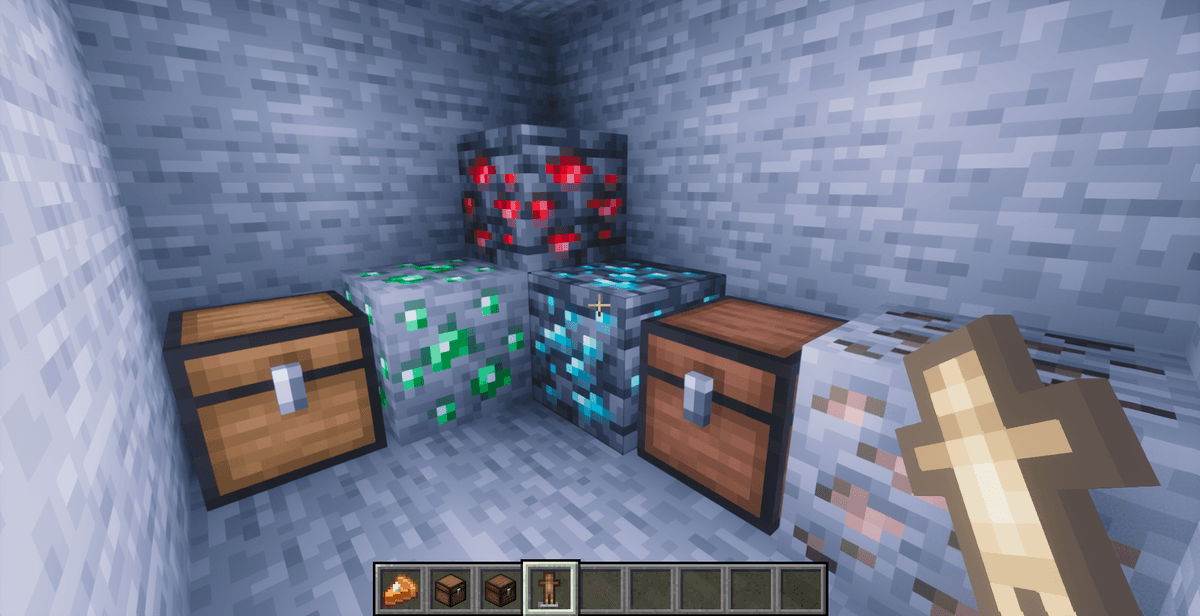
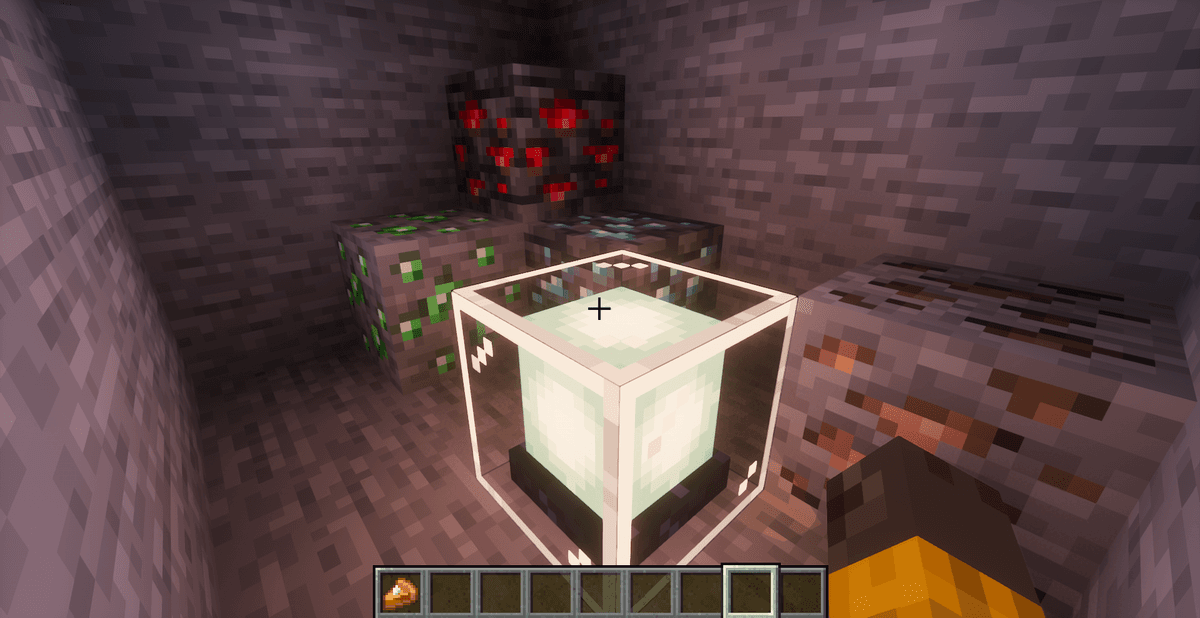
The standard 16-pixel Minecraft textures create a familiar, cozy atmosphere, but they look flat and monotonous when modern dynamic lighting is applied. Many players try to improve the graphics using high-resolution realistic resource packs (e.g., 256x or 512x), but this often ruins the original style of the game and significantly reduces computer performance. The Vanilla Mashup (PBR) resource pack solves this problem. It combines the classic low-poly style with modern Physically Based Rendering (PBR) maps, adding volume, natural specular reflections, and unique roughness to each block when exposed to light.

Mashup Concept and Resource Pack Structure
Vanilla Mashup (PBR) is not just a set of bump maps, but a large compilation created by pedrowav based on several well-known graphic projects from the Minecraft community.
Main Compilation Components
The resource pack combines elements from the following projects:
Stay True (overlays): Responsible for creating smooth transitions between different blocks (Connected Textures) and adding realistic overlays of grass, roots, or stones to adjacent surfaces.
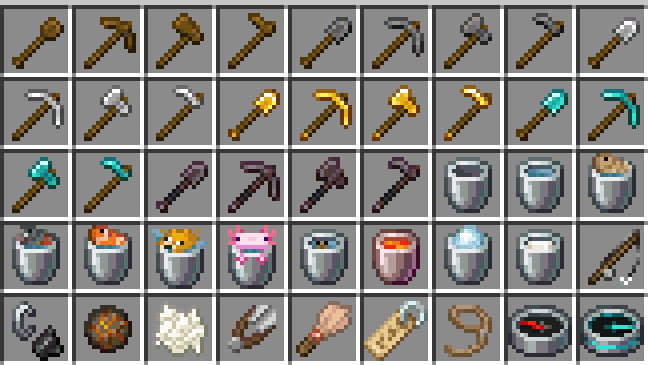
Reimagined: Updates the appearance of tools, plants, and some blocks, bringing them closer to the style of Mojang trailers.
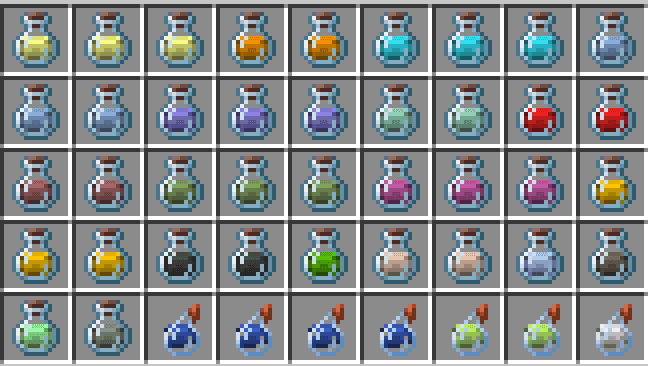
Fresh Textures: Refreshes small item details and interface icons.
SPBR & Fire Rekindled: Provide the basic PBR files for most solid blocks and improve the visualization of fire and lava.
Vanilla Tweaks: Adds useful minor tweaks (like clear glass or 3D rails).
PBR Mechanics and Shader Interaction
Physically Based Rendering (PBR) is a technology that provides the game engine and shaders with information about the physical properties of each block's surface.
Texture Map Structure
For every block in the resource pack, three separate image files are created:
Base Texture (Albedo/Diffuse): The standard colored image of the block (e.g., Planks or Cobblestone).
Normal Map: A file containing data on the surface angle. It is responsible for creating the illusion of 3D relief and shadows at pixel joints.
Specular Map: A file that determines the surface's roughness and metalness. Thanks to this, metal shines like Gold, Polished Andesite has mirror-like specular reflections, and untreated Wood remains matte.
To correctly encode these parameters, the resource pack uses the widely accepted LabPBR standard.
Technical Requirements and Client Setup
The resource pack will not work without a special environment capable of reading additional normal and specular maps.
Choosing a Graphics Engine
You need one of the following client setups:
Fabric Modpack (Iris Shaders + Sodium): The most optimized choice for modern versions of the game, providing high frames per second (FPS).
OptiFine Setup: The classic variant, which has built-in support for connected textures and PBR by default.
Shader Configuration for PBR
After installing the resource pack and launching compatible shaders (like Complementary Rebound or BSL), you need to activate PBR in the graphics settings menu:
Go to Shader Options.
Find the Materials or Surface Options section.
Make sure the Generate Normals/Specular function is turned off (since the maps are already built into the resource pack) and the material format is set to LabPBR (not OldPBR or custom).
For the maximum 3D effect, enable Parallax Occlusion Mapping (POM) and set the relief depth according to the author's recommendations.
Technical Limitations and Compatibility Issues
Using physically based rendering creates a certain load on the system and requires strict adherence to compatibility rules.
PBR Format Conflict: If you select the old OldPBR (SEUS) format instead of LabPBR in the shader settings, the textures will be covered with bright green or purple spots. This is due to the different color channel encoding used to transmit roughness and metalness parameters.
Parallax Occlusion (POM) Artifacts: At excessively high relief depth values in shader settings, the joints of cubic blocks may visually "tear" or overlap, creating black lines. To solve this issue, reduce the POM Depth parameter to 8 or 16 units.
Performance Impact (FPS): The 16x textures themselves do not strain the graphics card, but the processing of normals and speculars by the shader requires additional computations. When the POM feature is activated, FPS drops can range from 15% to 30%, depending on the GPU's power.
Installation
A typical installation takes about 5 minutes. The flow is the same; only the loader and the matching build differ.
- 1Download the resource pack (.zip) — keep it zipped.
- 2In Minecraft open Options -> Resource Packs -> Open Pack Folder.
- 3Move the .zip into that resourcepacks folder.
- 4Select the pack so it moves to the right column, then click Done.
 How to Install a Texture Pack in MinecraftLearn how to install a texture pack in Minecraft with a simple step-by-step guide. Personalize your game with ease.Open the install guide