Dynmap: Overview of the 3D Online Map Plugin for Minecraft
Detailed review of the Dynmap plugin for Minecraft servers. Isometric 3D map rendering, built-in web server configuration, compatibility…
Detailed review of the Dynmap plugin for Minecraft servers. Isometric 3D map rendering, built-in web server configuration, compatibility, and Nginx integration.
Dependencies:
Loader: Paper / Spigot / Fabric / Forge
Minecraft version: 1.20.x – 1.21.x
In multiplayer Minecraft, coordinating between players, finding free areas for building, and tracking activity across large territories often present challenges. Basic tools offer only local paper maps that do not cover the entire world and do not update in real time. The Dynmap utility solves this problem by creating an interactive map of the game world accessible through a regular web browser. It operates on the principle of geographic information services like Google Maps, displaying detailed terrain, player locations, claimed region borders, and in-game chat messages.
Rendering Engine Operation and Tile Saving
At the core of Dynmap's functionality lies its custom rendering pipeline, which converts three-dimensional Minecraft chunk data into a set of two-dimensional graphic files (tiles).
Rendering Types and Projections
The plugin supports three main world display options:
Flat view: A classic 2D map with a top-down view. It consumes the least disk space and CPU resources during generation.
Isometric 3D view (Surface): A volumetric three-dimensional projection at an angle, allowing you to evaluate landscape elevation changes, building architecture, and water depth.
Cave view: Renders underground cavities and mines, showing the structure of caves below surface level.
File Saving and Disk Load
All generated map tiles are saved as standard PNG or JPG images in the plugins/dynmap/web/tiles/ folder. With every block change by players (building, destruction, explosions), Dynmap triggers an incremental update process — only the tiles directly within the updated chunk area are redrawn.
The server's disk subsystem experiences significant load (I/O operations) during the initial world rendering. At high resolutions, the tile folder for a large map can reach tens or even hundreds of gigabytes, which requires fast SSD storage and setting a WorldBorder.
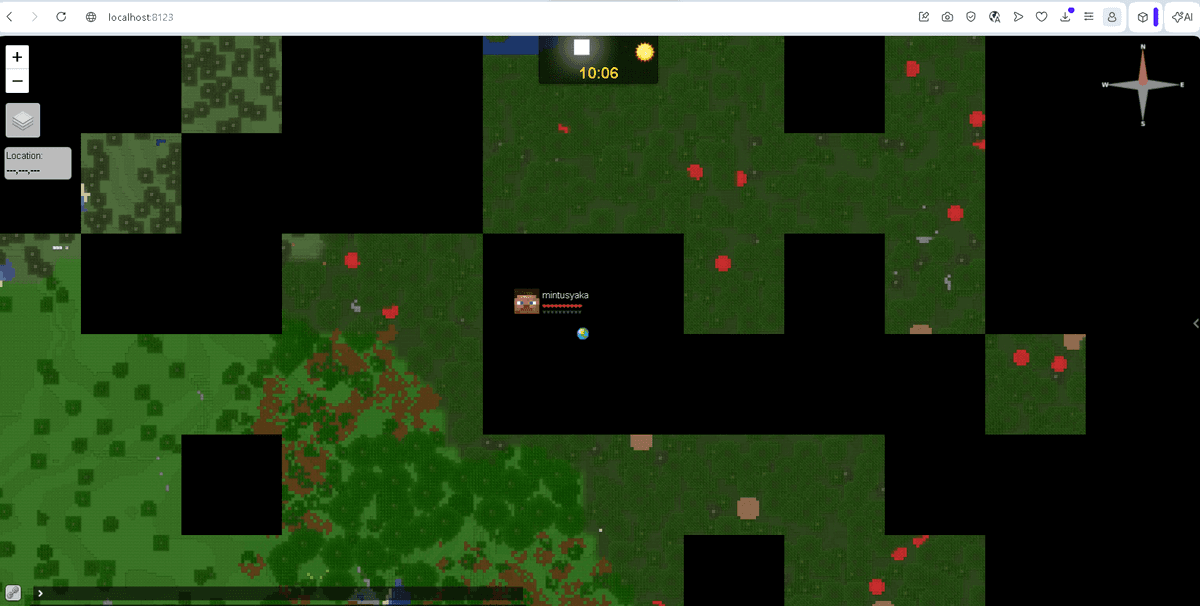
alt: [Dynmap web map interface in a browser showing a 3D isometric view of the spawn]
Web Server Infrastructure: Jetty vs Nginx
Dynmap offers two deployment schemes for the web interface, depending on the server scale and expected load.
Built-in Jetty Web Server
By default, after installation, the plugin automatically launches an integrated Jetty web server on port 8123. This option requires no additional configuration: the administrator simply needs to open port 8123 on the hosting provider, after which the map becomes accessible at http://Server_IP:8123/.
Integration with an External Server (Nginx or Apache)
For public servers with high player counts, the built-in Jetty creates additional overhead for the Java game process, as every web user consumes traffic directly through the game server. For optimization, it is recommended to configure tile delivery through an independent Nginx or Apache web server.
In this setup, Nginx is configured to work directly with the web/tiles/ folder, bypassing the Minecraft game engine. This has several key advantages:
Game Thread Protection: Browser requests are handled by a separate web server, eliminating micro-stutters (TPS drops) in the game.
HTTPS Encryption: The ability to easily configure free Let's Encrypt SSL certificates for a secure connection.
Offline Availability: The web map of the terrain remains accessible for viewing even when the Minecraft game server is restarting or turned off.
Configuration Settings and Rendering Management
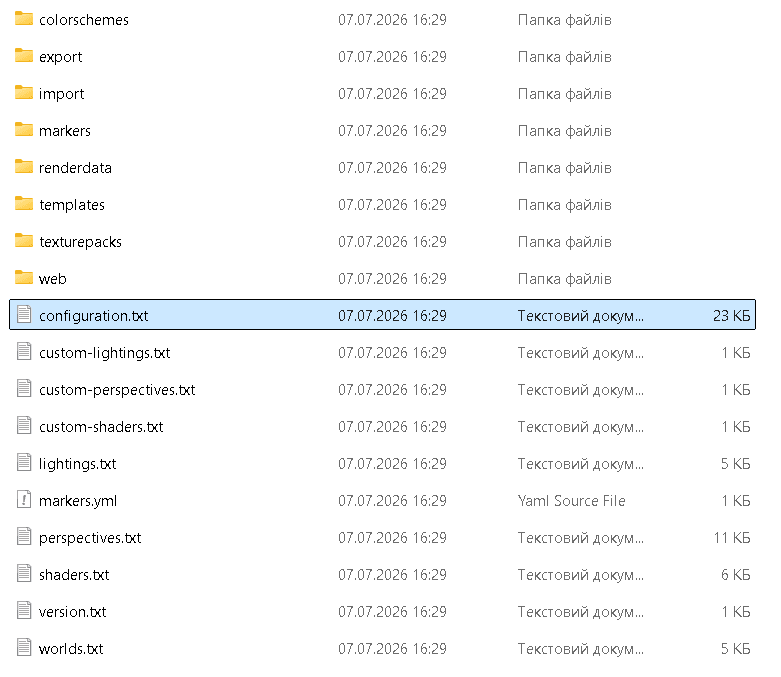
The plugin's main parameters are edited in the plugins/dynmap/configuration.txt file.
General Rendering and Saving Settings
Parameter | Default Value | Description |
|---|---|---|
|
| Defines the default rendering template quality ( |
|
| Storage choice for map tiles. Available options: |
|
| Interval (in seconds) for checking and rendering tiles from the update queue. |
|
| The number of tiles in the update queue after which the rendering interval is accelerated. |
|
| Accelerated rendering interval (in seconds) when the queue exceeds the threshold. |
|
| Number of tiles rendered simultaneously (recommended to set to half the number of CPU cores). |
|
| Priority for rendering threads. If |
|
| Saves the queue of pending rendering tasks upon server shutdown or restart. |
|
| Delay (in seconds) before rendering modified blocks. Prevents constant tile redrawing due to automated systems (redstone, pistons, etc.). |
|
| Enables tile hashing. If a tile image hasn't changed after rendering, the file on disk is not overwritten, saving storage lifecycle. |
|
| Calculates smooth lighting (like in-game) during map generation. |
|
| Format and quality of tile images (default is JPG at 90% quality). Can be changed to |
|
| Uses game-generated textures (matching the client's texture pack) instead of static ones. |
|
| Support for Connected Texture Mod from resource packs. |
|
| Support for custom biome and leaf colors from resource packs. |
|
| A list of in-game events (block placement/breaking, tree growth, explosions) that trigger the tile rendering queue. |
Web Infrastructure and File Paths
Parameter | Default Value | Description |
|---|---|---|
|
| Path within the plugin directory where graphic files (map tiles) will be saved. |
|
| Path to the static map web files (HTML, JS, CSS). |
|
| Automatic updating of static files when the plugin starts (set to |
|
| The TCP port where the built-in Jetty web server will operate. |
|
| Disables the built-in web server (useful when configuring tile delivery via an external Nginx or Apache web server). |
|
| Maximum number of concurrent sessions on the built-in web server to conserve resources. |
|
| Allows the web server to follow symbolic links. |
|
| Enables the user authentication system for viewing the map or communicating in chat. |
|
| Requires mandatory account login to view the web map. |
|
| A list of trusted proxy servers to correctly determine players' real IP addresses via the |
Configuring Web Interface Components (Web Chat, Markers, Players)
Parameter / Class | Default Value | Description |
|---|---|---|
| Component class | Responsible for transmitting data about player status, chat, and map updates. Note: When using an external web server (Nginx), this class must be changed to |
|
| Displays player health indicators on the map. |
|
| Displays the exact location of players on the map. |
|
| Allows sending messages from the web interface to the in-game Minecraft chat. |
|
| Delay (in seconds) between web chat messages (spam protection). |
|
| Hides players from the map if they are sneaking (crouching). |
|
| Hides players from the map if they are in spectator mode. |
|
| Hides players from the map if they are under the invisibility potion effect. |
| Component class | Manages marker layers on the map. Allows displaying spawn ( |
|
| Displays player faces (skins) on map markers. |
|
| Displays a health bar directly above the player's icon on the map. |
Optimization and CPU Performance Limits (TPS/MSPT)
Parameter | Default Value | Description |
|---|---|---|
|
| Interval (in seconds) for pauses during full rendering ( |
|
| Maximum number of chunks Dynmap can load into memory in one game tick (1/20 of a second). Decreasing this parameter reduces server lag. |
|
| Target time limit per tick for the rendering thread (in milliseconds). |
|
| If the server's TPS drops below this value, Dynmap automatically pauses rendering of regular tile updates. |
|
| If the server's TPS drops below this value, Dynmap pauses full world rendering ( |
|
| The minimum TPS at which calculating zoomed-out map levels is permitted. |
|
| Number of chunks in the landscape snapshot cache. |
|
| Usage of Soft References for the chunk cache. Allows the JVM to clear the map cache if there is a threat of an OutOfMemory error. |
Optimization Parameters in configuration.txt
To preserve server performance, pay attention to the following configuration file variables:
deftemplatesuffix— rendering quality suffix. Values likevlowres(very low quality) orlowres(low) allow for significantly faster map generation and reduce file sizes by 4-8 times compared to the standardhires.tilespath— allows redirecting map saves to a different server hard drive, protecting the primary storage from overflow.webserver-port— port for connecting to the map (instead of the standard8123).
Render Management Commands
Map generation is controlled through the server console by a level 4 operator:
/dynmap fullrender <world>— starts full rendering of the specified world. It is recommended to run this only after full chunk pre-generation and during periods of low online activity./dynmap radiusrender <radius>— updates the map only within a certain radius around the player, which is convenient after building large cities./dynmap cancelrender— stops current rendering processes in case of CPU overload./dynmap pause all— temporarily pauses all map calculations, freeing up resources to stabilize TPS.
Conclusion
The Dynmap plugin is a powerful tool for world visualization and improving player interaction on large Minecraft servers. Thanks to isometric 3D rendering and web interface integration, it transforms the map into a full-fledged information portal for the project.
Compared to alternatives like BlueMap (which uses heavy WebGL for full 3D viewing) or Squaremap (which offers an exclusively fast 2D map without volumetric models), Dynmap provides an optimal balance of functionality. However, high disk space requirements and constant I/O load demand careful attention from administrators regarding world limits and the correct choice of resolution. The plugin is an excellent choice for large survival servers, anarchy, or RP worlds.
Installation
A typical installation takes about 5 minutes. The flow is the same; only the loader and the matching build differ.
- 1Stop your Minecraft server.
- 2Drop the plugin .jar into the server /plugins folder.
- 3Start the server once so the plugin generates its config files.
- 4Edit /plugins/<name>/config.yml as needed, then run /reload confirm or restart.
 How to Install a Plugin on a Minecraft ServerLearn how to install a plugin on a Minecraft server. Follow this guide to add new features, improve gameplay, and customize your server easily.Open the install guide