
The /fill Command in Minecraft: Syntax, Modes and Examples
How /fill works in Java and Bedrock: corner coordinates, relative ~ positions, every fill mode with examples, the block limit and common…
The /fill command fills a rectangular area with one block in a single step. Use it to raise walls, dig out a foundation pit for an underground base, flood a pool, drain a lake or swap one block for another across a whole area, all without mining or placing blocks by hand. It needs cheats in singleplayer or operator rights on a server.
Key facts about the command:
Command:
/fillMaximum volume per command: 32,768 blocks by default. In Java Edition the limit is set by the
max_block_modificationsgame rule (commandModificationBlockLimitbefore 1.21.11); in Bedrock Edition it is fixed.Relative coordinates:
~(tilde), counted from the position where the command runsModes:
replace,keep,outline,hollow,destroy, plusstrictin Java 1.21.5 and newerPermissions: cheats enabled (Allow Cheats: ON) or operator rights (OP)
Syntax of the /fill command
The command takes two opposite corners of a box (the ends of its diagonal) and fills every block between them, corners included.
Java Edition syntax
/fill <x1> <y1> <z1> <x2> <y2> <z2> <block> [mode]
/fill <x1> <y1> <z1> <x2> <y2> <z2> <block> replace <filter> [mode]
The filter only goes after replace. Since 1.21.5 you can add outline, hollow, destroy or strict after the filter; in older versions replace <filter> ends the command.
Bedrock Edition syntax
/fill <x1> <y1> <z1> <x2> <y2> <z2> <block> [block states] [mode]
/fill <x1> <y1> <z1> <x2> <y2> <z2> <block> [block states] replace [filter block] [filter block states]
Bedrock used numeric data values here until 1.19.70; current versions take block states in square brackets instead.
Parameters
x1 y1 z1: coordinates of the first corner of the area.x2 y2 z2: coordinates of the opposite corner.<block>: the block ID, for examplestone,dirt,glass,airorwater. Block states are optional:oak_log[axis=x]in Java,oak_log ["pillar_axis"="x"]in Bedrock.<filter>: which blocks to replace. In Java it can be a block with states or a block tag such as#minecraft:logs.
Relative coordinates with the tilde (~)
You don't have to look up exact numbers: the ~ (tilde) means the current position of the player running the command, and a number after it is an offset from that position.
Examples of relative coordinates
~ ~ ~: the player's current position (the block at their feet).~5 ~10 ~5: 5 blocks east, 10 blocks up and 5 blocks south of the player. Positive X points east and positive Z points south.
Example: a 5×5×5 stone cube around the player
/fill ~-2 ~0 ~-2 ~2 ~4 ~2 stoneThis instantly places a solid stone cube 5 blocks wide, 5 deep and 5 high starting at the player's feet. The player ends up inside it, so step aside first or use hollow to get an empty room.
Modes of the /fill command
The optional mode at the end of the command changes how existing blocks in the area are treated.
replace (default)
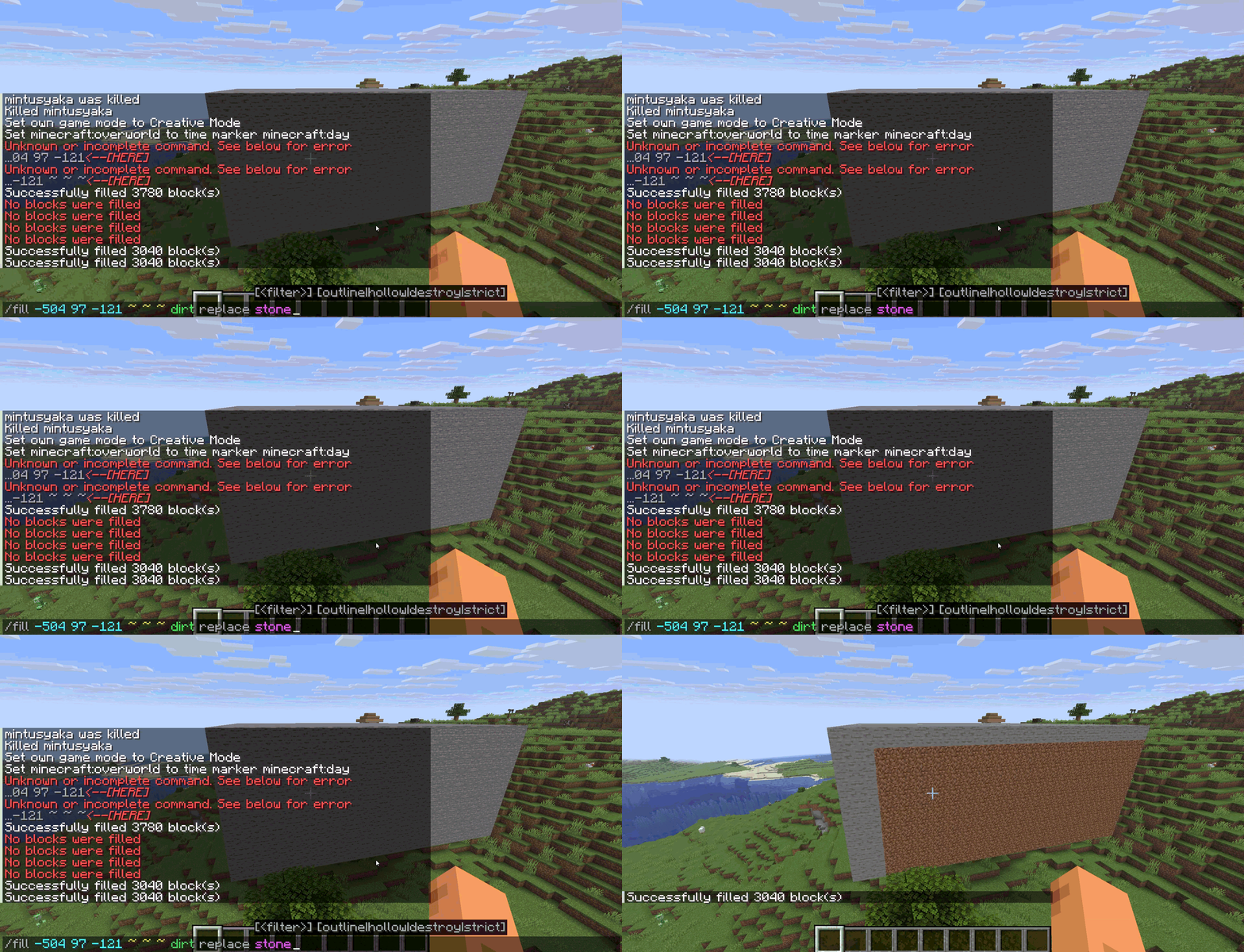
Replaces every block in the area, air included, with the chosen block. Add a filter to change only one type of block:
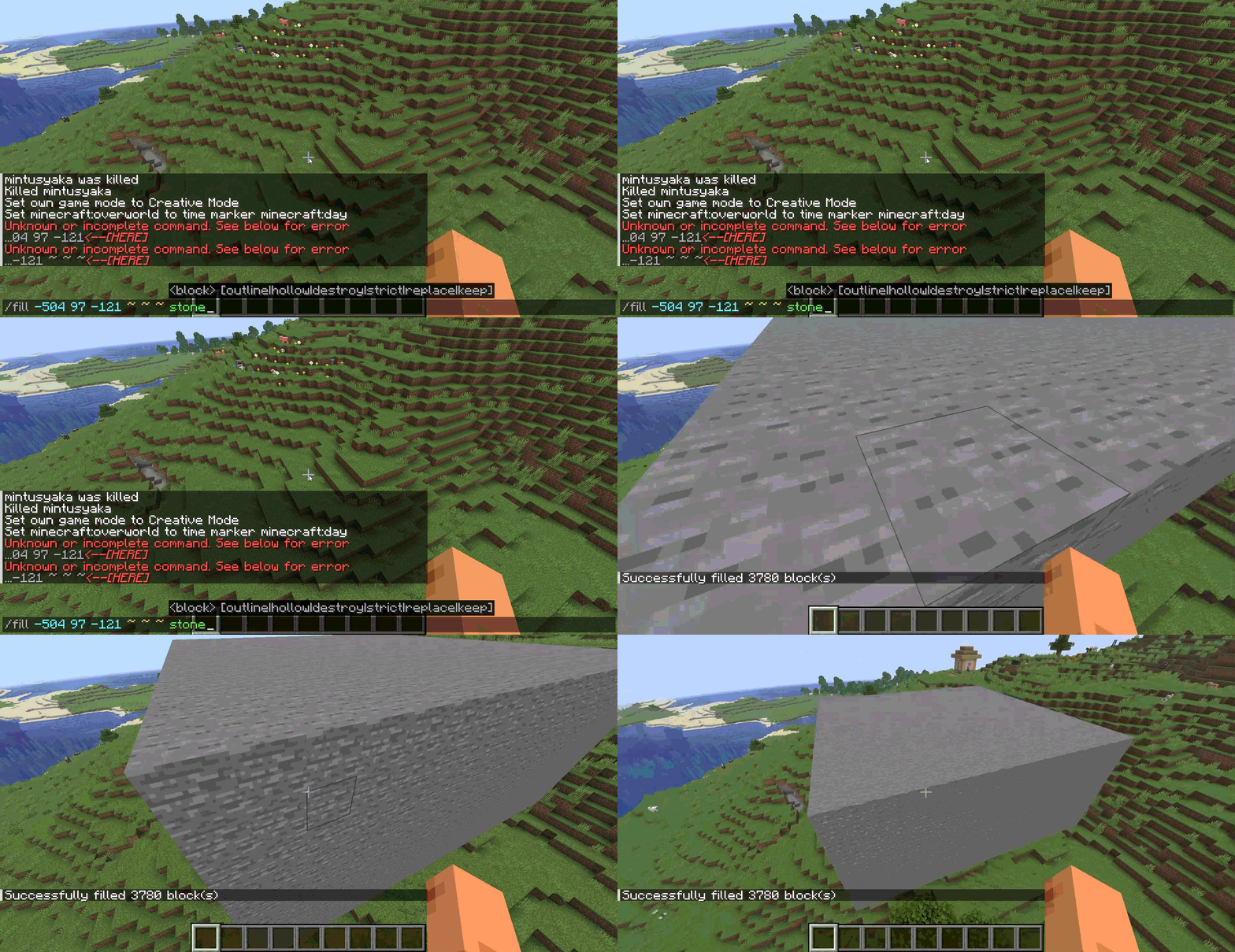
/fill ~-10 ~0 ~-10 ~10 ~5 ~10 stone replace dirtThis turns only dirt (dirt) inside the area into stone (stone) and leaves grass blocks, water and everything else untouched.
hollow (empty room)
Builds only the outer walls, floor and ceiling from the chosen block and clears everything inside to air. The quickest way to make an empty house or an underground room.
/fill ~-5 ~0 ~-5 ~5 ~5 ~5 bricks hollow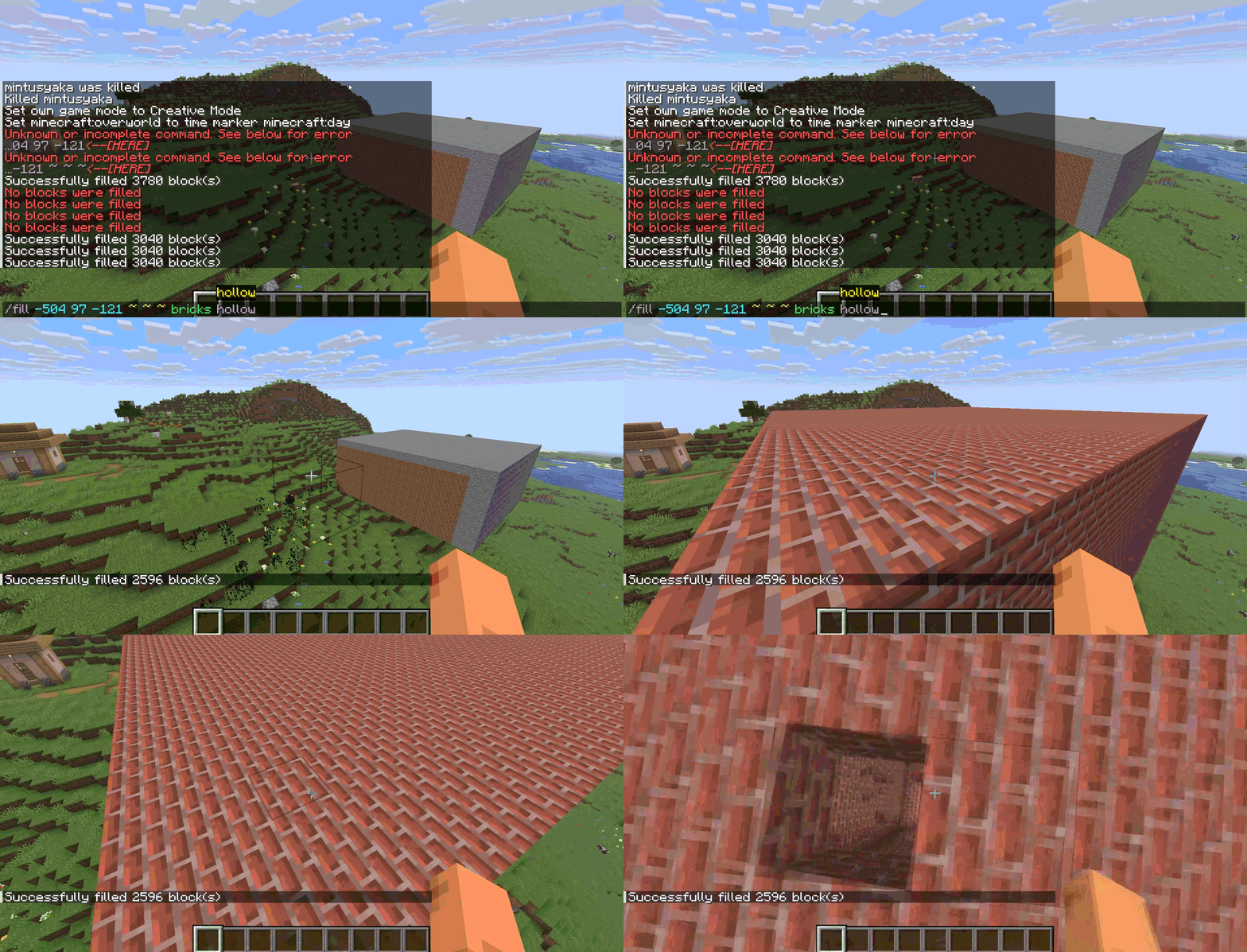
outline (shell only)
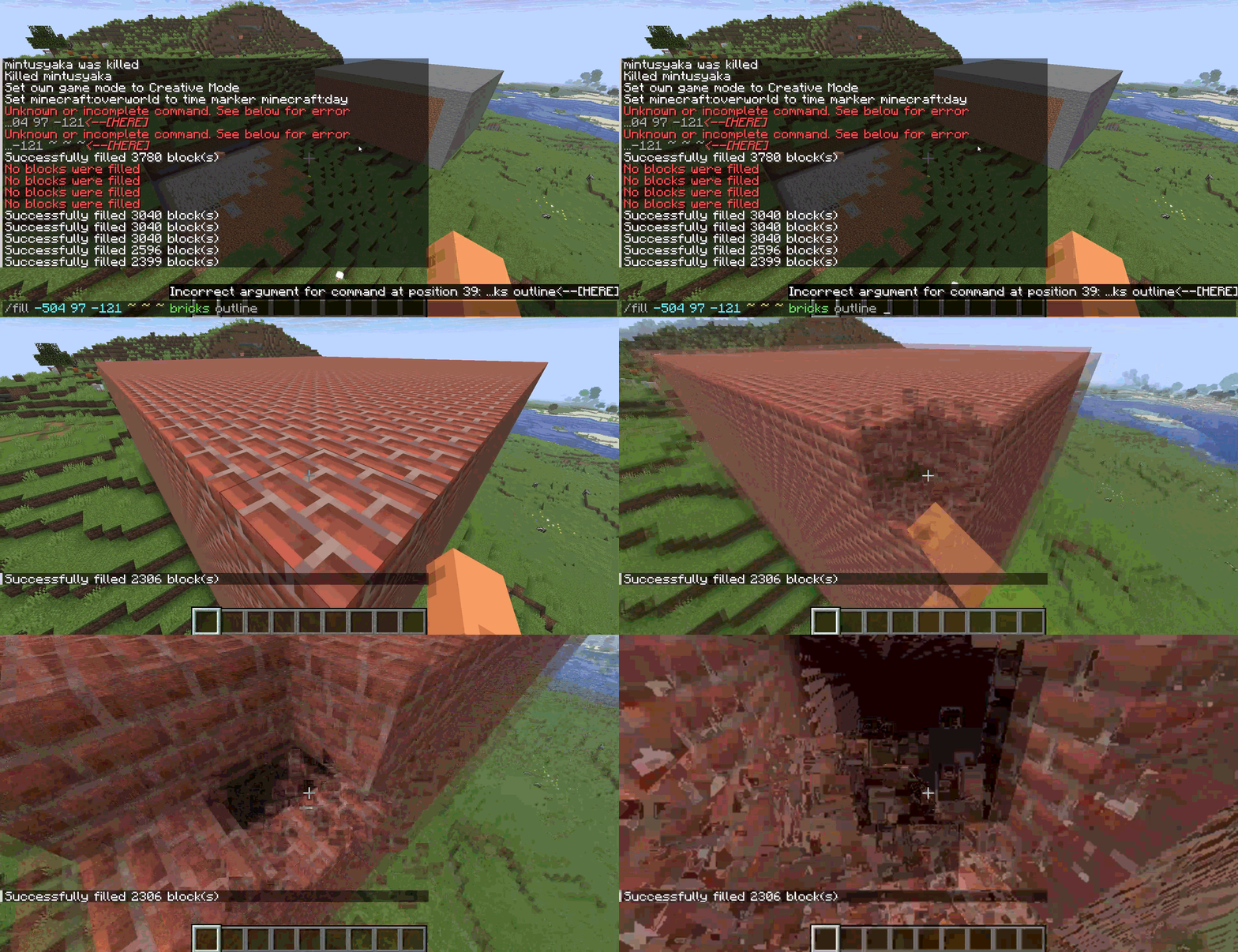
Also replaces only the outer layer of the area, but leaves the blocks inside as they are.
keep (fill empty space)
Places the block only where there is air. Every other block, including water, lava and plants, stays where it is.
destroy (break and drop)
Fills the area with the new block after breaking the old blocks and dropping them as items, as if they had been mined with a diamond pickaxe or shovel.
Be careful with destroy: breaking thousands of blocks at once leaves thousands of dropped items on the ground and can make the game lag badly.
strict (Java Edition 1.21.5+)
Places blocks exactly as specified without triggering block updates or shape updates: neighbouring blocks don't react, and fences, walls and glass panes keep the shape you gave them instead of connecting to their neighbours. There is no such mode in Bedrock Edition.
Useful /fill commands
Clear an area (dig a pit of air):
/fill ~-10 ~0 ~-10 ~10 ~10 ~10 airFill a pool with water:
/fill ~-5 ~-1 ~-5 ~5 ~-3 ~5 waterRemove all water nearby (drain a lake):
/fill ~-15 ~-5 ~-15 ~15 ~5 ~15 air replace waterWaterlogged blocks, kelp and seagrass are not the
waterblock, so they stay.Turn all grass blocks into smooth stone:
/fill ~-20 ~0 ~-20 ~20 ~0 ~20 smooth_stone replace grass_block
Modes compared
Mode | Outer layer | Blocks inside | Best for |
| Replaced with the new block | Replaced with the new block | Building solid masses |
| Replaced with the new block | Cleared to air | Empty rooms and houses |
| Replaced with the new block | Left unchanged | Encasing existing builds |
| Replaces air only | Replaces air only | Filling caves safely |
| Replaced, old blocks drop | Replaced, old blocks drop | Simulating mining |
| Replaced without block updates | Replaced without block updates | Placing blocks without disturbing neighbours |
Common errors and fixes
"Too many blocks in the specified area"
One command can change at most 32,768 blocks by default. Split the area into several smaller boxes or lower its height. In Java Edition you can raise the limit with the game rule /gamerule max_block_modifications 100000 (in 1.19.4–1.21.10 it is called commandModificationBlockLimit). Bedrock Edition has no such setting.
"That position is not loaded" or "Cannot place blocks outside of the world"
Part of the area is in unloaded chunks or outside the world's height limits. Java Edition reports "That position is not loaded" or "That position is out of this world!", Bedrock Edition reports "Cannot place blocks outside of the world". Move closer to the target area and check the Y coordinates.
The command doesn't work in singleplayer
Make sure cheats are enabled in your world. In Java Edition press Esc → Open to LAN → Allow Cheats: ON → Start LAN World; this lasts until you leave the world. In Bedrock Edition turn on Activate Cheats in the world settings.

Leave a comment
Links will be stripped
No comments yet. Be the first to share your thoughts.